
IBO Player runs directly on Windows 10 and Windows 11, giving you a full desktop player for live TV and on-demand streaming. You can connect your Desi Channels KSA subscription using either an M3U playlist link or an Xtream Codes login. This guide walks through downloading the player, locating your device credentials, and loading your channel playlist.
Download IBO Player for Windows PC
Download the 64-bit installation file from the official IBO Player portal using either link below. Once downloaded, double-click ibo_installer.exe and follow the standard on-screen prompts to complete the setup.
Official Windows x64 (10+) Installer
Direct executable installation package for Windows desktops and laptops.
Select Windows x64 (10+) on the IBO Player website and run ibo_installer.exe.
Open the App and Check Your Device Information
Open IBO Player from your Start Menu or desktop shortcut. On first launch, the welcome screen shows your device MAC address and a device key.
If you prefer not to type playlist URLs manually, take a photo of this screen and send it to our WhatsApp support team. We can activate your subscription and load your channel list remotely.

IBO Player welcome screen displaying device MAC address and device key.
Open the Main Menu and Click "Change Playlist"
Go to the main navigation bar at the bottom of the screen and click Change Playlist. The icon shows red and black playlist cards with arrows.
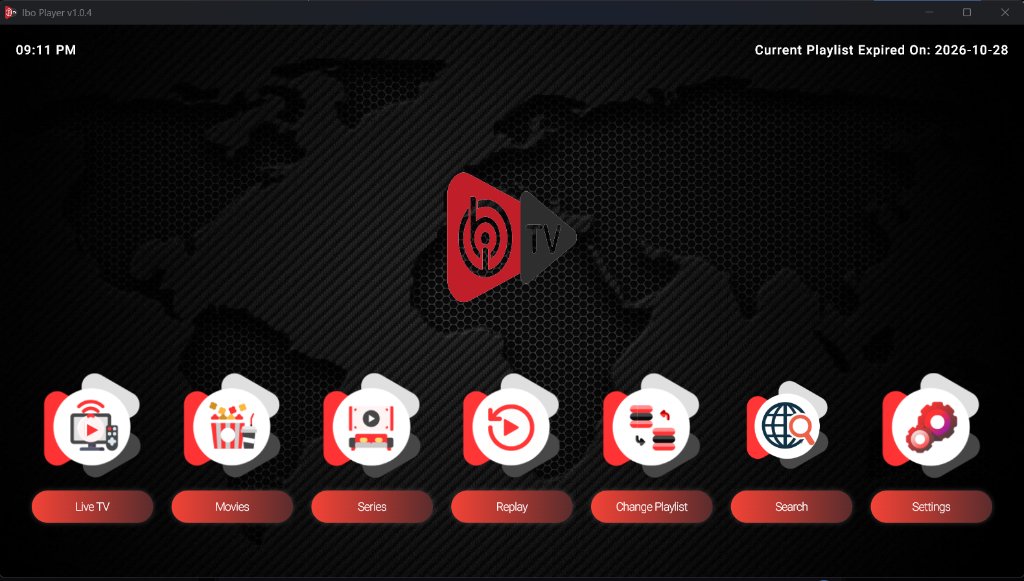
IBO Player main dashboard with options for Live TV, Movies, Series, and Change Playlist.
Click the Change Playlist button to manage your server connections.
Click "+ Add Playlist"
On the playlist management screen, click the purple + Add Playlist button. This opens the connection window where you enter your account details.
Click + Add Playlist to configure your M3U link or Xtream Codes login.
Add Your Subscription Details (M3U URL or Xtream Codes)
The setup window has two tabs. Select the one matching the subscription details we sent you.
Method A: General Tab (M3U Link)
Select this tab if your subscription was delivered as an M3U URL.
- Playlist Name: Enter any label you want, such as
Desi Channels KSA. - Playlist URL: Paste the full M3U streaming link from your confirmation message.
- Click Save.
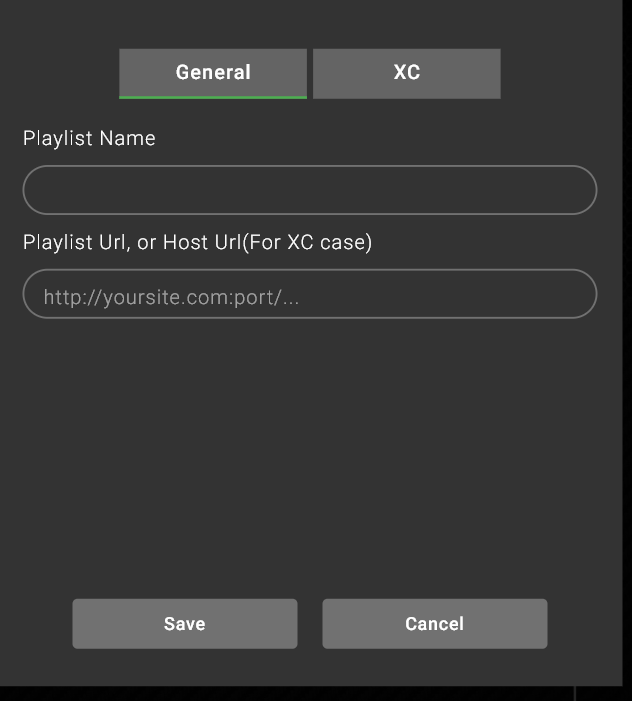
General tab for M3U playlist link configuration.
Method B: XC Tab (Xtream Codes API)
Select this tab if you received a server URL, username, and password. This format loads the program guide and category folders quickly.
- Playlist Name: Enter any name, such as
Desi IPTV. - Host URL: Enter the server address including the port number, such as
http://portal.example.com:8080. - User Name: Type your subscription username.
- Password: Type your password.
- Click Save.
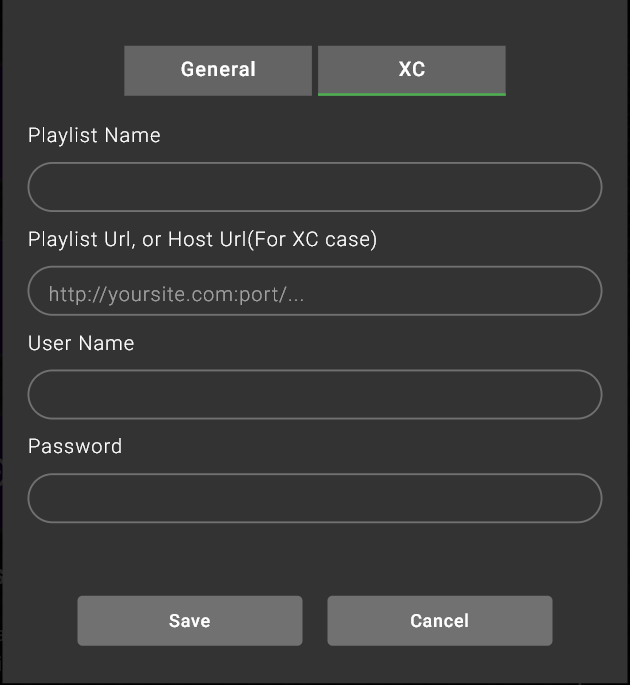
XC tab for Xtream Codes login credentials.
Restart Application and Start Watching
Once you click Save, close the application completely and reopen it from your desktop shortcut.
The player will read the new connection and load your content into three main sections:
- Live TV: Regional channels from India, Pakistan, Bangladesh, and the Gulf, grouped by category and language.
- Movies: On-demand titles with original audio tracks and subtitles.
- Series: Complete seasons of regional television dramas.
ibo_player.exe has permission to communicate on private networks.
Desktop Shortcuts in IBO Player
Use these keyboard controls while watching live channels:
| Action | Keyboard Key | Function Description |
|---|---|---|
| Toggle Full Screen | F or Double Click | Expands stream to full monitor resolution without window borders |
| Channel List / EPG | Enter / Space | Opens the side channel browser and live program guide |
| Volume Control | ↑ / ↓ Arrow Keys | Increases or decreases player audio levels |
| Channel Up / Down | ← / → Arrow Keys | Switches to previous or next channel in the category |
| Return / Back | Esc or Backspace | Exits full screen or returns to category selection |
Frequently Asked Questions
Does IBO Player work on both Windows 10 and Windows 11?
Yes. The 64-bit installer works on Windows 10 (version 1809 and later) and all Windows 11 editions. It uses standard Windows media codecs for playback.
Can I keep IPTV playing on a second monitor while working?
Yes. Drag the player window to your secondary display and press F or double-click to view in full screen. You can continue working on your primary screen without interruption.
What internet speed do I need for smooth playback in Saudi Arabia?
A reliable connection of 15 Mbps handles standard channels. For Full HD sports on STC, Mobily, or Zain fiber, plan for at least 25 Mbps to avoid buffering during peak evening hours.